top of page
Totally Literate
A Worldwide English Literacy Program
For Scholars, Ages 5 to 105

TRWRR

Ludwig van Beethoven, 1770-1827
Karl Böhm- Vienna Philharmonic Orchestra
The Pastoral Symphony, aka No. 6
In F Major, Opus 68
First movement
Second movement
Third movement
Fourth movement
Fifth movement
"The World is a Jungle to the unread!"

Translating Word Documents
Steps to translate Spanish selections into Danish:
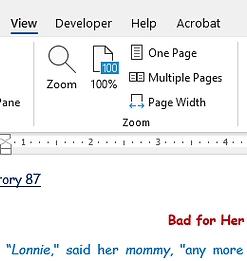
Step One: Click on View in the ribbon, and if necessary change to One Page, as shown pictured below.
Step Two: Click on Review, then Translate, as pictured below.
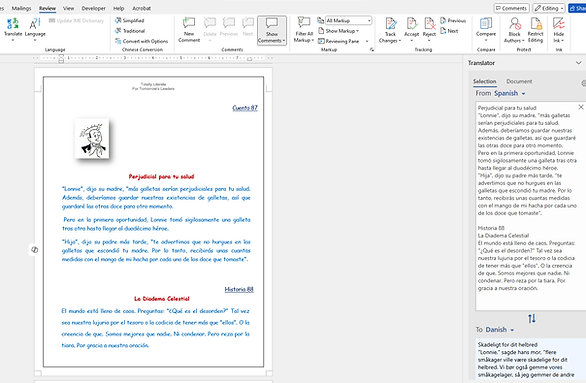
Step Three: Scroll down to the first page of Spanish stories, then select them with your mouse.
Step Four: In this example we have already selected Danish. However, had we not, then we would click on the down-pointing caret next to whichever language is shown to find Danish in the pop-up menu.
Step Five: Finally, we click on Insert, as shown pictured to the right below .
Now, the Danish will have replaced Spanish as shown below.


Read Aloud
The Read Aloud icon is pictured in the ribbon below. Once it is clicked, Stories 87 and 88 in both languages may be read seamlessly by the two TTS voices without the student needing to do anything.
sample
bottom of page